

Resetting your Samsung gas oven can resolve various issues, from error codes to unresponsive controls. Whether you’re dealing with a minor glitch or attempting to restore the oven to its factory settings, following the correct steps can ensure safety and efficiency. This guide will walk you through the process of how to reset samsung gas oven, making it simple to troubleshoot and reset your appliance.
Importance of Resetting Your Samsung Gas Oven
Resetting your Samsung gas oven is an essential step in maintaining its functionality and prolonging its lifespan. It can help resolve common issues like unresponsive touchpads, incorrect temperature readings, or persistent error codes.
By performing a reset, you give the oven a chance to refresh its system, which can often eliminate minor glitches without requiring professional assistance. This simple action can save time, prevent costly repairs, and ensure that your oven operates safely and efficiently. Additionally, regular resets can help maintain optimal performance, ensuring your appliance continues to meet your cooking needs reliably.
When and Why You May Need to Reset
Understanding when and why you may need to reset your oven is crucial for maintaining its performance and longevity. A reset is often necessary when your oven starts exhibiting unusual behavior, such as failing to heat properly, displaying inaccurate temperature levels, or generating unresponsive controls. These issues can arise due to power surges, software glitches, or even improper usage.
Resetting acts as a troubleshooting step that can address minor software errors, prevent further malfunctions, and restore your appliance to its default settings. It is a simple yet effective method to avoid unnecessary service calls and keep your oven functioning at its best. Always consult the user manual for proper reset procedures to ensure safe and effective operation.
10 Methods How to Reset Samsung Gas Oven
1. Perform a Basic Power Cycle Reset
The most common and straightforward way to reset a Samsung gas oven is by conducting a basic power cycle. This involves turning off the power supply to the oven, allowing residual electricity to dissipate, and then restoring power. Start by unplugging the oven from the wall outlet. If the plug is not easily accessible, locate your kitchen’s circuit breaker panel and turn off the breaker associated with the oven. Leave the power disconnected for at least 2 to 5 minutes. This break allows internal memory and electronic components to reset completely. After the waiting period, restore power and check if the issue is resolved. This method works well for temporary software glitches or unresponsive controls.
2. Reset via Control Panel Buttons (If Available)
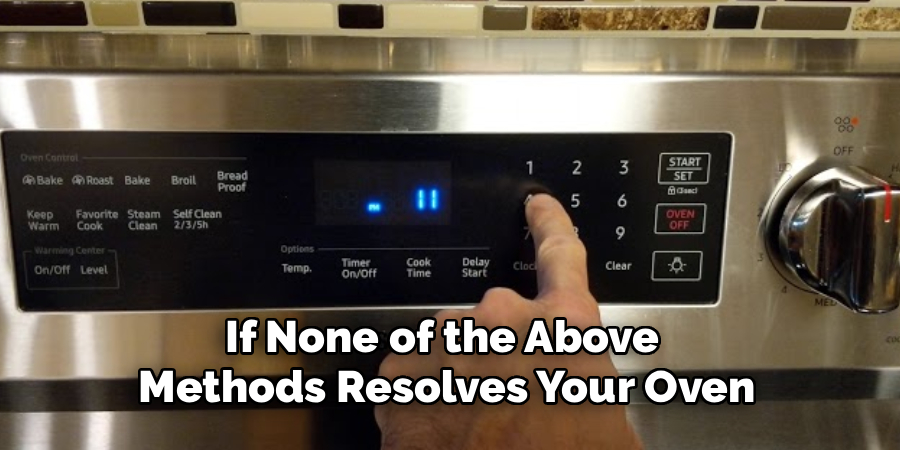
Many newer Samsung ovens are equipped with digital displays and soft-touch control panels that include built-in reset or cancel buttons. If your model features such a panel, press and hold the “Cancel,” “Off,” or “Clear” button for 3 to 5 seconds. This action signals the internal controller to terminate all ongoing operations and refresh the system settings. When successful, the display will either go blank for a moment or return to its default clock setting. If the oven remains unresponsive or displays an error code, try combining this button reset with a power cycle for more effective results.
3. Use the Factory Reset Function (Smart Models Only)
For smart Samsung gas ovens equipped with Wi-Fi and connected to the SmartThings app, there is usually a built-in factory reset option. To perform a factory reset, go to the oven’s control panel menu and navigate to the settings or options menu. Look for a “Factory Reset,” “Reset All,” or “Default Settings” option. Once selected, the oven will confirm if you want to proceed. Approving the reset will erase all user data, including saved cooking modes, timers, and Wi-Fi settings, restoring the oven to its original state. This method is particularly helpful when troubleshooting persistent software or connectivity issues.
4. Disconnect and Reconnect the Gas Supply Safely (If Needed)
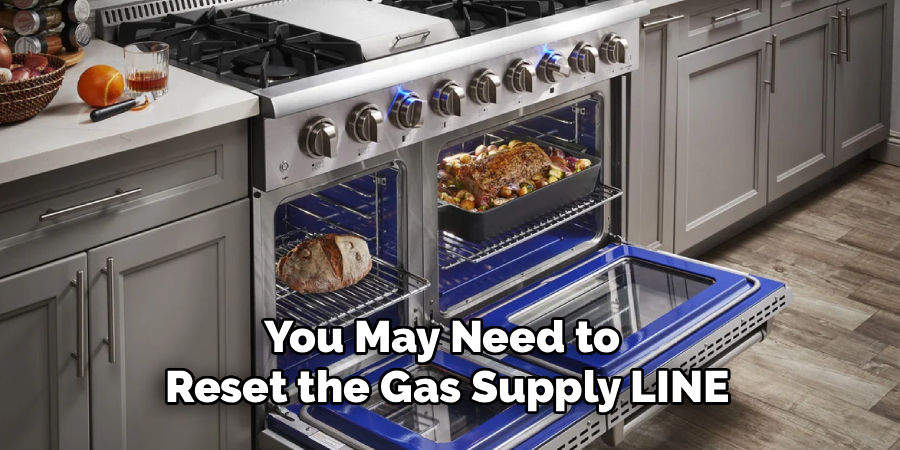
If your Samsung gas oven is experiencing issues related to ignition or uneven gas flow, you may need to reset the gas supply line. First, ensure the oven is completely turned off and cool. Then, locate the shut-off valve on the gas line, usually behind or beside the oven. Turn the valve to the “Off” position and wait for a few minutes. This step allows internal gas pressure to stabilize. After the wait, reopen the valve carefully and ensure it is fully in the “On” position. Now power on the oven and test the burners and oven ignition. Note: Always ensure there are no gas leaks when working with gas lines, and consult a professional if unsure.
5. Reset the Oven’s Wi-Fi Connection (For Smart Models)
If your oven is not connecting to the SmartThings app or has trouble maintaining a Wi-Fi connection, resetting the Wi-Fi settings may help. To do this, press and hold the “Wi-Fi” button (or a combination such as “Settings” + “Wi-Fi”) on the oven’s panel for 3 to 5 seconds until the Wi-Fi indicator light blinks or turns off. You can now reconnect the oven to a new network using the SmartThings app. Reestablishing this connection can also fix software update issues or smart feature malfunctions. Make sure your Wi-Fi signal is strong and consistent in the kitchen area.
6. Clear Specific Error Codes by Restarting
Samsung ovens often display error codes like “E-08” or “SE” to indicate technical faults. While some errors require technician attention, others can be cleared by a manual reset. Turn the oven off using the control panel, then unplug the oven or turn off the breaker for at least 5 minutes. Reconnect the power and observe if the error code has disappeared. If it persists, refer to the user manual for code-specific guidance. Resetting the oven in this way gives the onboard computer a chance to reassess all conditions afresh.
7. Check and Reset the Thermal Fuse (If Applicable)
Some Samsung ovens include a thermal fuse or temperature limiter that trips if the oven overheats. If your oven has no power despite being plugged in, the thermal fuse may need resetting or replacement. To access it, you must remove the rear panel of the oven (while unplugged). If the thermal fuse is resettable, you can press its reset button; otherwise, it may need replacement. This method is more technical and should only be attempted by someone familiar with appliance repair or under guidance from Samsung customer support.
8. Reset by Calibrating the Temperature Settings
If your Samsung gas oven heats improperly or over/under-bakes food, recalibrating the temperature might help. Some models allow users to adjust the oven temperature up or down by 5–35°F. To reset the calibration, press and hold the “Bake” button for several seconds until you see “0°F” or a calibration screen. Use the arrow keys to increase or decrease the temperature offset. Press “Start” or “Set” to confirm. This type of reset helps compensate for internal sensor drift and restore accurate baking performance.
9. Reset Child Lock or Demo Mode
If your Samsung oven isn’t responding and appears locked, it may be in child lock or demo mode. To disable child lock, press and hold the “Child Lock” button (sometimes marked with a padlock symbol) for 3 to 5 seconds until the lock icon disappears. For demo mode, go to the settings menu and navigate to the option that reads “Demo Mode” or “Store Mode,” then switch it off. This resets the oven to full operational mode. Sometimes, a power cycle is also necessary after turning off these modes.
10. Contact Samsung Support for Remote Reset Options
If none of the above methods resolves your oven issues, contacting Samsung’s customer support can provide advanced reset procedures specific to your oven model. They may guide you through diagnostic steps, software updates, or suggest a remote reset if your oven is a smart model. Keeping your model number, serial number, and error codes handy will help expedite support. Samsung’s technicians can sometimes initiate a remote update or recommend service if the problem is hardware-related.
Maintenance and Upkeep
Proper maintenance and regular care are essential to keep your Samsung oven functioning efficiently and to extend its lifespan. Start by cleaning the interior regularly using oven-safe cleaners to remove grease and food residues, preventing buildup that could affect performance. For the exterior, use a soft damp cloth to wipe surfaces and avoid abrasive materials that may scratch or damage the finish.
Check and replace worn-out accessories, such as racks or seals, as needed to ensure optimal operation. Periodically inspect the heating elements and ensure they are free from obstructions or debris. If your oven is equipped with a self-cleaning function, use it sparingly, as frequent use can stress components over time.
Additionally, calibrate the oven temperature occasionally to ensure accurate cooking results. Follow the manufacturer’s guidelines on how to safely perform this task. Replacing filters and checking electrical connections for secure fittings should also be included in your maintenance routine. By following these steps, your oven will remain in excellent working condition, delivering reliable performance for years to come.

Conclusion
Resetting your Samsung gas oven can be as simple as unplugging the appliance or as detailed as performing a factory reset or sensor recalibration. Whether the issue is electrical, mechanical, or software-based, the methods listed above offer a practical and safe approach to restore your oven’s functionality. Thanks for reading our blog post on how to reset samsung gas oven! We hope you found it helpful and informative.

About
Diane Lo is a distinguished figure in the world of kitchen innovation and culinary design, with over a decade of expertise creating functional and sustainable kitchen environments. Her professional focus lies in merging ergonomic spatial planning with modern culinary technology, fostering kitchen layouts that are both highly practical and aesthetically refined. As the lead expert at Kitchenub, Diane Lo delves into the art and science of kitchen organization, appliance selection, and workflow efficiency, inspiring home cooks and professional designers alike.
Education
Royal Melbourne Institute of Technology (RMIT University) (Melbourne, Australia) Associate Degree in Interior Design and Spatial Planning Focus on sustainable kitchen layouts, user-centric design, and ergonomic efficiency. Gained hands-on experience in high-traffic commercial kitchen modeling and advanced space-saving architecture.
Nottingham Trent University (United Kingdom) Bachelor’s in Product Design and Culinary Architecture (Honors) Specialized in the intersection of kitchen technology and lifestyle design. Participated in major industry collaborations, working with premium appliance manufacturers and cabinetry firms to gain real-world insights into modern kitchen workflows.
Publications and Impact
At Kitchenub, Diane Lo shares her expert insights on kitchen renovation processes, material durability, and strategies for achieving peak culinary productivity. Her writing effectively bridges the gap between professional culinary needs and home design, making it an essential resource for those looking to transform their kitchen into a highly efficient and welcoming heart of the home.